RapidQuizMaker is a lightweight WordPress quiz plugin for creating and managing question-based tests directly from the admin dashboard.
It supports category-based question banks, random question selection, configurable grading, time limits, result tracking, and detailed statistics.
The plugin can be used for educational quizzes, practice tests, online assessments, and classroom-style exams.
With shortcode and block support, quizzes can be easily inserted into any page or post.
Frontend Quiz Interface
The RapidQuizMaker frontend interface allows visitors to start a quiz directly from a page or post. Before the quiz begins, users can choose one or more available categories from the category list. The All option starts a quiz with random questions from every enabled category. After entering their full name, they can begin the quiz by clicking the Start Quiz button.
During the quiz, questions are shown one at a time with multiple-choice answers. Users can answer each question with the mouse, and the form can also be used with the keyboard for easier navigation. They can move through the questions, review their chosen answers, and complete the quiz within the configured time limit.
When the user finishes the quiz, they can submit their answers using the final submit button. After submission, RapidQuizMaker can display the result depending on the administrator’s settings, including the score, percentage, grade, completion time, and detailed answer review. The submitted result is also saved in the WordPress admin area, where administrators can review attempts, examinee summaries, and statistics.
RapidQuizMaker Settings
The RapidQuizMaker Settings page provides full control over the quiz behavior from the WordPress admin dashboard. Administrators can configure password protection, the number of questions, time limits, result visibility, grading thresholds, and the categories included in the exam. The selected categories are available through the
[rapidquizmaker]
shortcode, while individual category quizzes can also be inserted using the Rapid Quiz Block.

Manage Questions
The Manage Questions page allows administrators to import questions in bulk from JSON files or paste JSON code directly into the admin interface. Questions can also be added manually, edited, deleted, filtered by category, and downloaded when needed. Category management and shortcode information are available on the same page, making it easy to organize large question banks.

Quiz Results
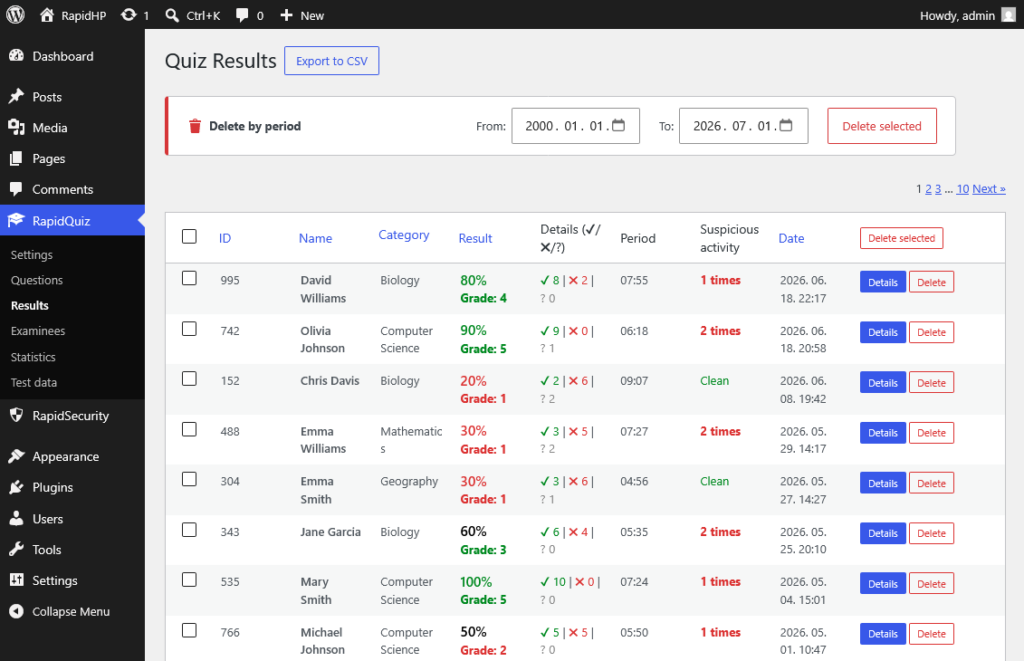
The Quiz Results page displays submitted quiz attempts in a clear, sortable table. Administrators can review participant names, categories, scores, grades, completion time, suspicious activity, and submission dates. Results can be exported to CSV, viewed in detail, or deleted individually or in bulk.
Examinee Summary
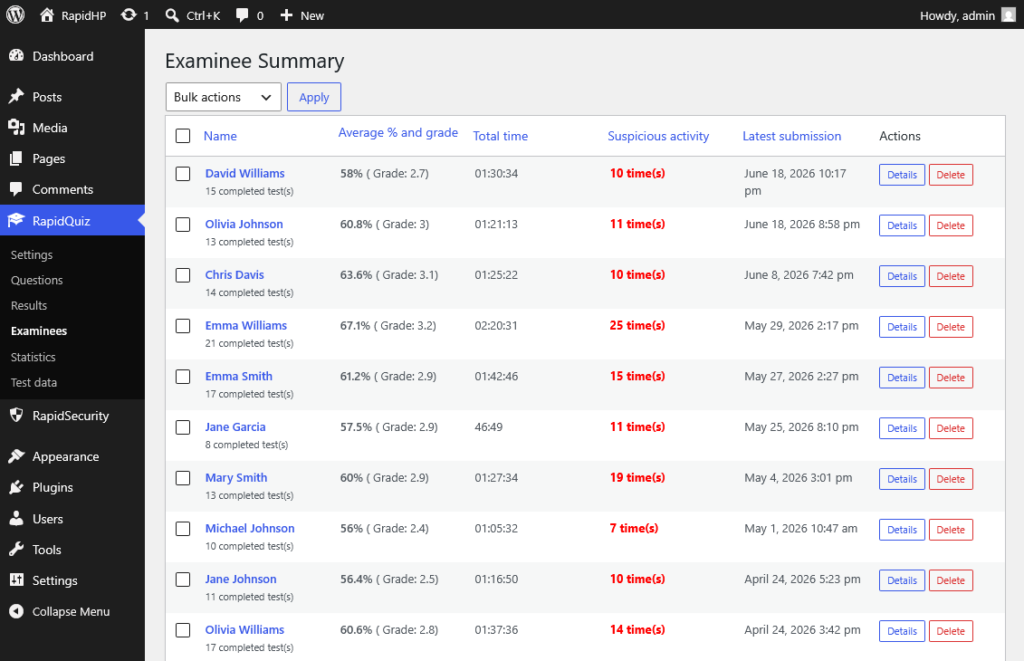
The Examinee Summary page groups quiz attempts by participant and provides a quick overview of each examinee’s performance. It shows the average percentage and grade, total time spent, suspicious activity count, latest submission date, and the number of completed tests. Administrators can open detailed results for each examinee or remove selected records when necessary.
Rapid Statistics and Analytics
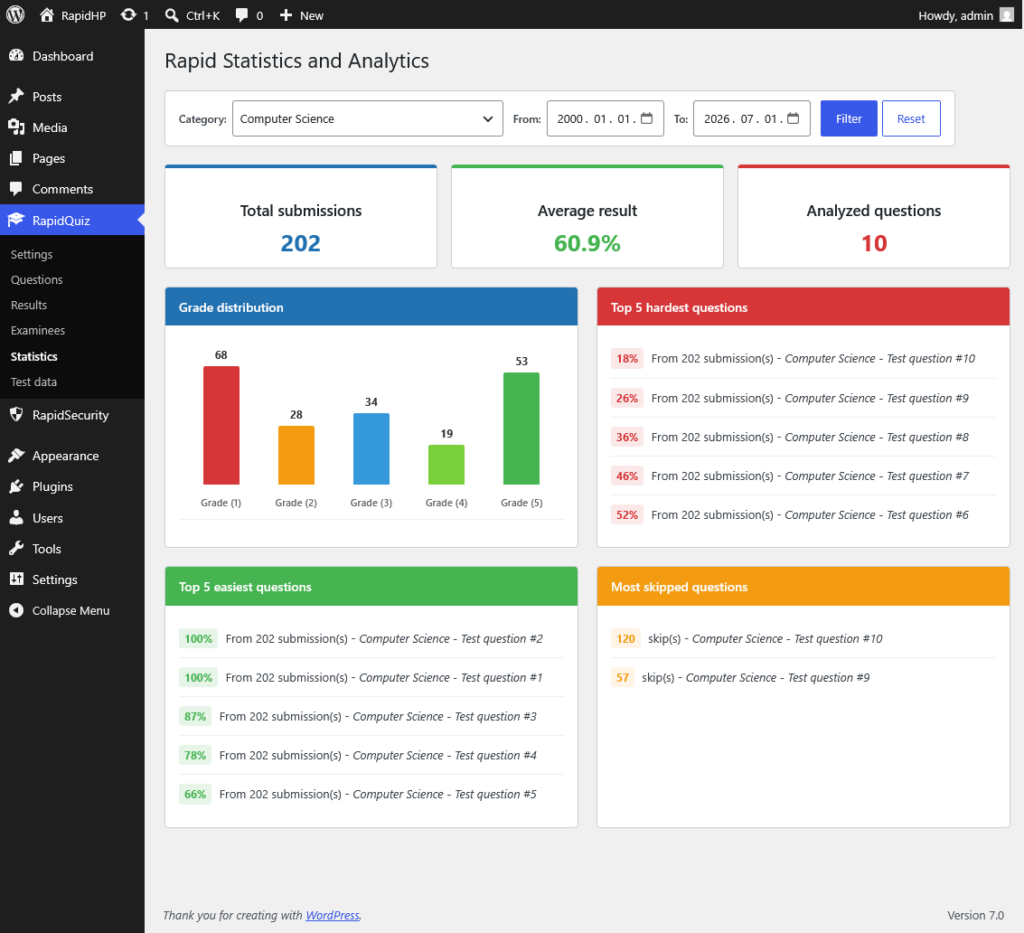
The Rapid Statistics and Analytics page gives administrators a visual overview of quiz performance by category and date range. It summarizes total submissions, average results, analyzed questions, grade distribution, the hardest questions, the easiest questions, and the most skipped questions. These statistics help identify learning gaps, problematic questions, and overall participant performance.
2 responses to “Rapid Quiz Maker”
-
Dear RapidPlugins Team,
My name is Hasmik Yenokyan, and I’m reaching out from WPGlob, where we work with WordPress plugins, Shopify apps, and SaaS tools through content and video marketing.
While researching tools in your niche, we came across your RapidQuizMaker which caught our attention and we’d like to explore a potential collaboration with you.
We’re considering creating and publishing a dedicated comparison article about it on our website to explain and showcase it’s main features and functionality. This would help introduce your product to a new audience and attract more qualified leads
If this sounds interesting and you’d like to explore this opportunity further, feel free to reply to this email, and I’ll be happy to share more details. If you prefer, we can also arrange a quick call to discuss further.
Looking forward to hearing your thoughts on this!
Best regards,
Hasmik-

Dear Hasmik,
Thank you for reaching out and for your interest in RapidQuizMaker. I am glad to hear that my plugin has caught your attention.
Currently, I am focusing on the development and refinement of my plugins; therefore, I am not planning any commercial or paid promotional collaborations.
Thank you again for your interest, and I wish you and the WPGlob team continued success!
Best regards,
Istvan
RapidPlugins
-

Leave a Reply